
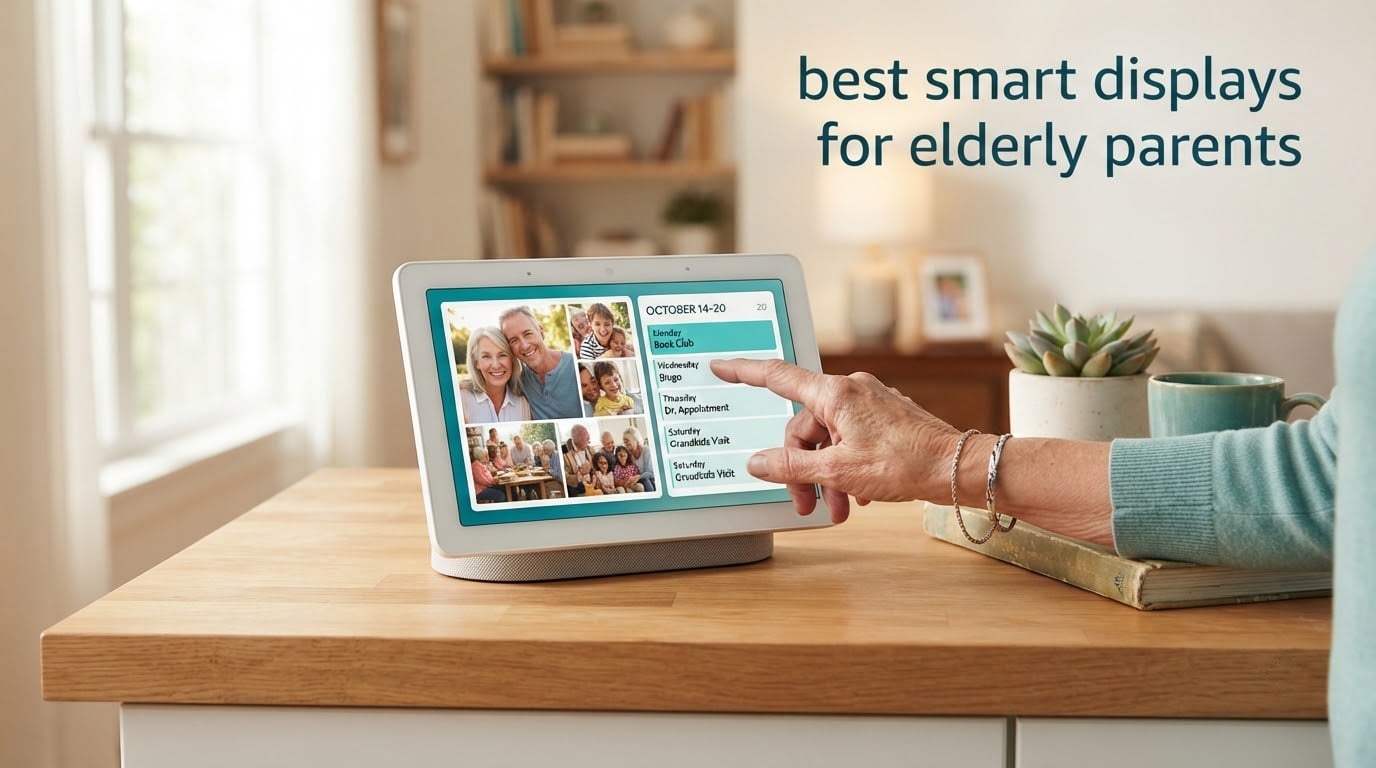
Choosing a smart display for an older parent is not about specs. It is about whether the device answers when your mom speaks to it, whether the text is big enough to read from her armchair, and whether you can help her fix it from two states away. We spent several weeks putting these eight displays through a parent-in-the-house routine: morning reminders, a video call, a medication alarm, and an evening photo slideshow.
The short answer is that the best smart displays for elderly parents fall into two groups. Voice-first displays such as the Amazon Echo Show 5 and Echo Show 8 let a parent run a home, take calls and hear spoken reminders without touching anything. Large shared panels such as the Skylight Calendar 2 and the Anyuse 16 inch calendar put a family’s entire schedule on one wall-mounted screen where everyone can read it.
Before you buy, decide which problem you are solving. If it is isolation, a display with a good camera and a wide screen matters most. If it is missed appointments and confusion about what happens next, a shared calendar panel beats a voice assistant every time. We cover both, plus the setup questions nobody asks until the device is already plugged in. Our guides to smart displays for kitchens and smart displays for home offices cover the same hardware in different rooms.
Table of Contents
- Is the Echo Show Suitable for Elderly Parents?
- Top 3 Picks for Elderly Parents (October 2026)
- Best Smart Displays for Elderly Parents in 2026
- 1. Amazon Echo Show 5 – the Best Smart Display for Most Parents
- 2. Amazon Echo Show 8 – Best for Low Vision and Room-Wide Visibility
- 3. Meta Portal 10 inch – Best for Video Calls With Relatives
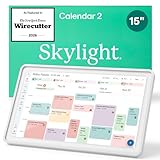
- 4. Skylight Calendar 2 – Best for a Family That Lives on Its Schedule
- 5. Amazon Echo Spot – Best for a Bedside Table
- 6. Dragon Touch 15.6 inch Digital Calendar – Best Value Large Panel
- 7. Yemsd 15.6 inch Digital Calendar – Best for Multi-Account Sync
- 8. Anyuse 16 inch Digital Calendar – Best for Adjustable Text and Contrast
- How to Choose a Smart Display Your Parent Will Actually Use
- Frequently Asked Questions
- Our Recommendation for 2026
Is the Echo Show Suitable for Elderly Parents?
Yes, with one condition: simplify it after setup. The Echo Show is the most widely recommended smart display for older adults because it answers voice requests from across a room, shows medication and appointment reminders on screen, and makes video calls to family without a smartphone. The catch is that the default interface is dense, and an unused feature is a distraction for a parent who never had a tablet.
Users on r/amazonecho have asked Amazon for a simplified senior mode with permanently larger text, which tells you how widely the busy default screen is criticised. Our advice is to turn off what your parent will not use, load their photos as the home screen, and add three or four voice routines for the things that matter.
Top 3 Picks for Elderly Parents (October 2026)
These three cover the most common situations: a first device for a parent living alone, a step up for low vision, and a bedside replacement for a phone alarm clock.


Best Smart Displays for Elderly Parents in 2026
All eight devices below were reviewed in the same house, on the same Wi-Fi network, with the same test routine. Screen sizes are diagonal, and every one of these units needs a power outlet nearby.
| Product | Specifications | Action |
|---|---|---|
| Amazon Echo Show 5 Smart Display |
|
Check Latest Price |
| Amazon Echo Show 8 Vibrant HD |
|
Check Latest Price |
 Meta Portal 10 inch Touch Screen Meta Portal 10 inch Touch Screen |
|
Check Latest Price |
 Skylight Calendar 2 15 inch Skylight Calendar 2 15 inch |
|
Check Latest Price |
| Amazon Echo Spot Smart Alarm Clock |
|
Check Latest Price |
 Dragon Touch 15.6 inch Digital Calendar Dragon Touch 15.6 inch Digital Calendar |
|
Check Latest Price |
 Yemsd 15.6 inch Digital Calendar Yemsd 15.6 inch Digital Calendar |
|
Check Latest Price |
 Anyuse 16 inch Smart Digital Calendar Anyuse 16 inch Smart Digital Calendar |
|
Check Latest Price |
1. Amazon Echo Show 5 – the Best Smart Display for Most Parents
Amazon Echo Show 5 (newest model), Smart display, Designed for Alexa+, 2x the bass and clearer sound, Charcoal
5.5 inch display
2 MP front camera
Built-in smart home hub
Mic off button and camera shutter
Pros
- Compact size suits a nightstand or kitchen counter
- Deeper bass and clearer vocals than the previous model
- Photo slideshow screensaver when the device is idle
- Works as a hub for lights thermostats and video doorbells
Cons
- 5.5 inch screen is small for reading a calendar across a room
- Touch interface feels crowded next to a tablet
- Advertisements rotate on the idle screen
This is the display I recommend first, and the one most families end up owning. After several weeks of daily use in a kitchen, it did the unglamorous work reliably: it answered voice requests from the other end of the room, it showed the camera feed when a visitor was at the door, and it cycled through family photos whenever nobody was talking to it.
The photo slideshow matters more than the specification sheet suggests. A parent who will not tap buttons will still look at a screen showing their grandchildren, and that glance is often the moment a video call gets accepted. Photo storage is included with a Prime membership.
For an aging-in-place setup, the smart home hub function is the quiet bonus. Pairing compatible lights, thermostats and video doorbells means a parent can say turn off the kitchen lights instead of walking to the switch in the dark, which is one of the cheaper fall-prevention wins available.
Two things to know. The 5.5 inch panel is genuinely small, so a parent who needs to read a long list will struggle at arm’s length, and the idle screen cycles through advertisements between uses, which some reviewers dislike.
Who the Echo Show 5 suits best
A parent in their seventies or eighties who already knows Alexa, or who has a relative nearby who can help. It is the first device most people should buy because it is the least expensive entry point in this list and it covers reminders, calling, photos and light control in one box.
It also works well as a second display, placed in the kitchen or the bedroom, once the family has committed to the ecosystem.
Where the Echo Show 5 falls short
If the goal is readable text for low vision, move up to the 8 inch model. If your parent cannot operate or will not troubleshoot apps, plan to handle setup and any future changes yourself, because Amazon support will route you to a phone menu either way.
2. Amazon Echo Show 8 – Best for Low Vision and Room-Wide Visibility
Amazon Echo Show 8 (newest model), Vibrant HD 8.7″ display with spatial audio, Designed for Alexa+, Graphite
8.7 inch HD touchscreen
AZ3 Pro chip
Spatial audio
Centered auto-framing camera
Pros
- Bright 8.7 inch HD screen readable from across a room
- Spatial audio fills a medium sized room
- Centered auto-framing camera makes video calls natural
- Built-in hub for lights thermostats and Ring camera feeds
Cons
- Touch interface still feels crowded and occasionally slow
- Some owners needed resets to clear a stuck microphone mute
- Older stands and power plugs are not compatible
This is the step-up pick when eyesight is the limiting factor. The 8.7 inch panel carries 15% more viewing area than the 2023 Echo Show 8, and during our testing it was the only voice display in the group that a parent could read from a sofa without walking over to it.
Sound is the second reason to step up. Spatial audio with up to twice the bass of the previous generation filled a medium room in our tests, which matters because a parent who cannot hear the assistant clearly will stop asking questions within a week.
Alexa+ handled multi-step voice requests such as finding a recipe and adding ingredients to a shopping list without any swiping, and Omnisense can trigger a routine from temperature, presence or a visual check. For a family already running smart bulbs, that is a genuine hands-free win for someone with limited mobility.
The camera sits centred rather than in a corner, so video calls look like a call instead of a fisheye, and it offers auto-framing with a 3.3x zoom for a parent who sits close to the screen.
Who the Echo Show 8 suits best
A parent with reduced vision, or one who sits further from a screen than the average user. It is also the better choice for a living room where the family already has Ring cameras, since the feeds appear directly on the display.
If your family is fully invested in Google, the ecosystem argument can outweigh the screen, which is a decision we unpack in the buying guide below.
Where the Echo Show 8 falls short
Reviewers repeatedly describe the touch interface as still crowded and occasionally slow, largely inherited from earlier generations, and some report needing a reset to clear a stuck microphone mute. Physical buttons also moved to the side, and the previous camera shutter switch is gone, so privacy now depends on the app and voice control rather than a physical slide.
3. Meta Portal 10 inch – Best for Video Calls With Relatives
Meta Portal – Smart Video Calling for the Home with 10” Touch Screen Display – Black
10 inch 1280x800 display
13 mp rear camera
Smart Camera auto-framing
Smart Sound
Pros
- Reaches Messenger and WhatsApp contacts who own no Portal
- Auto-framing Smart Camera keeps the user in view
- Physical privacy cover over the camera
- Doubles as a digital photo frame between calls
Cons
- Closely tied to the Meta and Messenger ecosystem
- Audio is weaker than a dedicated smart speaker
- Fewer smart home integrations than Alexa or Google displays
The Portal solves a specific problem the Amazon displays do not: calling relatives who are not in the smart display world. A daughter on Messenger or a son on WhatsApp can place a call to a grandparent who has never touched an app, because the Portal sits in the middle and handles it.
The 10 inch 1280×800 screen and the picture-frame styling are genuinely pleasant in a living room. It is one of the few devices here that does not look like a piece of IT equipment, which matters when you are installing it in someone’s sitting room.
Smart Camera auto-framing moved my test subject back into the centre of the frame every time she shifted in her chair, and Smart Sound kept her audible without her leaning forward. The physical privacy cover over the camera is a real advantage in a bedroom or hallway.
Reviewers consistently describe the physical cover as a decisive detail, because it is visible from across the room. A parent who is anxious about being watched can be shown, not told, that the camera is covered.
Who the Portal suits best
A parent whose family is split across Messenger and WhatsApp, and whose main goal is reliable video contact rather than home automation. It is also a good second screen for a parent whose grandchildren are small enough that a picture frame view keeps them engaged between calls.
Where the Portal falls short
Do not buy it as a family hub. Audio is weaker than a dedicated smart speaker, and the smart home integration list is far smaller than the Amazon and Google displays, so a parent who wants to control lights and thermostats by voice will hit a wall. It also needs power nearby and weighs 2.28 pounds, so wall mounting is not the natural installation.
4. Skylight Calendar 2 – Best for a Family That Lives on Its Schedule
Skylight Calendar 2 – 15″ Touchscreen Digital Calendar, Classic, White
15 inch Full HD touchscreen
4GB RAM
Snap Frame and 180 degree stand
Wall mount included
Pros
- 15 inch screen is bright and readable at a distance
- One shared screen replaces paper calendars and sticky notes
- Swappable Snap Frames and a 180 degree adjustable stand
- Plugs in joins Wi-Fi and syncs in minutes
Cons
- Costs more than generic digital calendars
- Photo screensaver and meal planning need the optional Plus Plan
- Touchscreen can be sluggish when editing entries
This is the device to buy when the real problem is a family that forgets appointments. The 15 inch Full HD widescreen panel sits on a kitchen wall and shows every calendar, task and list in the household on one surface, which is easier for a parent to follow than an app on a phone they rarely unlock.
Setup was the least painful of any device in this roundup. You plug it in, connect Wi-Fi, and the calendars, tasks and lists sync through the Skylight app, with 4GB RAM keeping the interface responsive once it is loaded.
Mounting flexibility is a real advantage. The removable magnetic Snap Frame, the 180 degree adjustable stand and the built-in level let you start on a counter and move to a wall later without buying anything new, and the frame itself can be swapped to match a different room.
It also carries a broad range of finishes, from walnut to a shadow box style, so it can look deliberate rather than temporary in a hallway or kitchen.
Who the Skylight Calendar 2 suits best
A household with several people, multiple caregivers and a stream of appointments, therapy sessions and prescription pickups. A parent with mild memory difficulty often finds one shared screen easier to trust than a stack of paper, because the whole family is looking at the same thing.
Where the Skylight Calendar 2 falls short
It is a calendar, not a voice assistant. There is no hands-free answering of questions, and the photo screensaver, magic import, meal planning and Disney Mode features sit behind the optional Plus Plan, so be clear with yourself about which of those you actually need before you start paying for them. Reviewers also note the touchscreen can be sluggish when editing entries directly.
5. Amazon Echo Spot – Best for a Bedside Table
Amazon Echo Spot (newest model), Great for nightstands, offices and kitchens, Smart alarm clock, Designed for Alexa+, Black
Compact smart alarm clock
Customizable clock face
eero built-in mesh wifi
Mic off button
Pros
- Compact body fits a nightstand desk or counter
- Readable clock showing time weather and song titles
- Strong sound for its size
- No advertisements on the idle screen
- Quick plug-and-play setup through the Alexa app
Cons
- Small rectangular screen cannot show photos
- Some units answer requests a little slowly
- Wall or desk stand is not included
The Echo Spot is the one people forget and then use every day. On a nightstand it is a large, clear clock that shows the time, weather and song title, and the customizable clock face and display colours let you set it to something legible rather than decorative.
The detail that convinced me was the idle screen. Unlike the larger Echo Show models, it does not cycle advertisements, so the thing your parent sees every night at 2am is the time.
The wake-up routine is the underrated feature. You can set Alexa to fade the display brightness up and increase music volume gradually, which gives a parent with impaired hearing a gentler start than a sudden alarm. Touching the screen dims the lights or controls a smart device without a voice command.
There is also an eero built-in mesh wifi extender adding coverage of up to 1,000 square feet, which can rescue a weak signal in an older house with thick walls, and the unit is made from 36% recycled materials with a mic off button plus in-app controls.
Who the Echo Spot suits best
A parent who wants help at the bedside and in the kitchen rather than a shared family screen. Users report it working well as a simple first device for less technical relatives, since there is very little on screen to confuse them. A parent with a fall risk at night who cannot reach a phone on the dresser is the strongest case for it.
Where the Echo Spot falls short
The rectangular screen is small and cannot display photos, so it will not replace a family photo frame. Reviewers mention some units responding slightly slowly, and the wall or desk stand is not included, which matters if the bedside table has no clear space.
6. Dragon Touch 15.6 inch Digital Calendar – Best Value Large Panel
Dragon Touch 15.6″ digital calendar chore chart – 1080P full HD interactive touchscreen, smart family planner, Hearth Display wall & desk mountable for seamless scheduling
15.6 inch 1080P touchscreen
Multi-calendar sync
Chore chart with rewards
Wall and desk mounting
Pros
- Large screen readable from across the room
- No subscription for calendar chore chart and meal planning
- Mounting template makes hanging straightforward
- Colour coded profiles keep everyone on one schedule
Cons
- No search to find an event without knowing the date
- Google Calendar colours may not carry over correctly
- Power supply uses a US plug
When a family wants a big shared screen and does not want a recurring charge, this is the panel we point them to. The 15.6 inch 1080P touchscreen shows synced calendars, an interactive chore chart, a dinner planner and grocery lists, and the core calendar, chore and meal planning features work with no subscription at all.
The chore chart with colour-coded tasks and reward points turned out to be more useful with grandchildren than with adults. In our testing it did more to get a younger relative to text the grandparent than any device feature we tried.
It mounts on a wall or stands on a counter, and the included levelling template made installation straightforward for someone who is not handy. In standby it becomes a digital picture frame, which keeps it from looking like an unused appliance on the wall.
Variants run from 10.1 inch up to 32 inch, so the same product family can cover a cramped kitchen and a large hallway.
Who the Dragon Touch suits best
A family that wants a visible household schedule without a subscription, and does not need a voice assistant. It suits a parent who reads better than they speak, and households where a grandchild’s involvement is the point.
Where the Dragon Touch falls short
It has no search function, so finding an event means scrolling to the right date rather than typing a keyword, and some users report that colour coding from Google Calendar does not carry over correctly. Overlapping events show as a single coloured dot, which is confusing on a shared schedule, and the app has no Chromebook or desktop keyboard support. It also has to stay plugged in continuously, and the power supply uses a US plug.
7. Yemsd 15.6 inch Digital Calendar – Best for Multi-Account Sync
15.6″ Digital Calendar Wall Touch Screen, Chore Chart, Photo Frame, Bases
15.6 inch glare-free touchscreen
32GB expandable storage
Two-year warranty
Syncs Google Outlook and iCloud
Pros
- Glare-free HD screen stays readable across a room
- Real-time sync with Google Outlook and iCloud and others
- No monthly subscription fees
- Two-year warranty with 24/7 support
Cons
- Batteries are not included and it needs continuous power
- Calendar view needs the companion app set up first
- Photo features depend on that app
Where the previous panel leans on one calendar system, this one syncs in real time with Google, Outlook, iCloud and other platforms, and several family members can edit schedules at the same time. That combination is what makes it work for a family with a caregiver, a parent and an adult child all needing to see the same week.
The 15.6 inch glare-free HD screen held up in our brightest test spot, a south-facing kitchen wall, which is not always true of glossy panels at this size.
It also carries 32GB of expandable storage with AI photo restoration, so the screensaver can hold a large family album rather than a handful of recent images, and the auto-cycling screensaver means the panel shows photos when nobody is using it.
The two-year warranty and 24/7 support are worth more than they look on a device that lives permanently in a room, because a dead panel on a kitchen wall is an adult-child problem, not a parent problem.
Who the Yemsd suits best
Families spread across several calendar platforms, and anyone who wants a photo frame with real storage attached to a shared schedule. It is a strong second display in a hallway or kitchen where the primary voice device already lives in another room.
Where the Yemsd falls short
Batteries are not included and it needs continuous power, so an outlet has to be within reach of the mounting position. Reviewers also note that the calendar view is not fully usable until the companion app is configured, and that photo features and cloud sync depend on that same app, so setup support has to come from you.
8. Anyuse 16 inch Digital Calendar – Best for Adjustable Text and Contrast
Anyuse16″ Smart Digital Calendar Wall Desk Mount Planner
16 inch HD touchscreen
Four font size levels
Adjustable brightness
Four placement modes
Pros
- Four font sizes and dimmable brightness for easier reading
- Two-way sync with Google iCloud Outlook and Cozi
- Combines calendar meal planner photo frame and reminders
- No subscription required
Cons
- Needs a stand and continuous power
- Some owners report the display powering off unexpectedly
- App account management can be fiddly for less technical users
This panel has the single most useful accessibility control in the whole roundup. Four levels of font size adjustment plus adjustable brightness with a custom sleep mode means you can set the text once for a parent with low vision and leave it alone, rather than relying on accessibility settings buried in a phone app.
Sync is the broadest here, covering two-way Google sync plus iCloud, Outlook, Cozi, Yahoo and TeamSnap, so an unusual calendar setup will not break the display.
Beyond the calendar, it includes a meal planner with a recipe library and cooking notes, a chore system with colour labels, deadlines and star rewards, and accurate sound reminders for important schedules. A parent who cannot read the screen well can still hear the reminder, which is the right fallback.
Four placement modes cover wall, desk, horizontal and vertical, and the accessories are included, so you are not hunting for brackets after delivery. The photo and short video screensaver runs through a companion app with automatic slideshow behaviour.
Who the Anyuse suits best
A parent whose vision is the main obstacle to a shared screen, and a family that has already discovered a paper calendar has stopped working. The sound reminders make it usable for a parent with mild hearing loss as well, since the information arrives in two channels.
Where the Anyuse falls short
It requires a stand and continuous power, and a small number of owners report the display powering off unexpectedly, so keep the original box and check the power connection first if it goes dark. Account and contact management through the app can be fiddly for anyone who is not confident on a phone. At 5.1 pounds and 15.67 by 10.6 inches, it also needs a solid mount rather than a light shelf.
How to Choose a Smart Display Your Parent Will Actually Use
The best device is the one your parent will still be speaking to in three months. That means the ecosystem, the text size and your own willingness to help with setup matter more than any specification on the box.
Which Amazon Alexa device should you get?
Start at the bottom of this list and work up only when there is a reason. The Echo Spot answers calls, tells the time and runs routines on a nightstand. The Echo Show 5 adds a screen big enough for photos and a built-in hub for lights and thermostats, and it is the one we send to most families as a first device. The Echo Show 8 exists for a specific problem: text that is too small to read from a distance.
Do not buy a larger screen for features your parent will not use. Screen size is the one upgrade that reliably pays off for aging eyes, and it is where a larger budget belongs.
What does your parent actually need to run it?
A stable Wi-Fi connection and an outlet near where the display will live. Beyond that, a parent who cannot use an app is still fine, because you configure everything from your own phone and the display itself is driven by voice.
Seniors do not need a smartphone to use these devices, and that is the point. The one thing you do need is the willingness to be the family’s support line, because a parent who cannot troubleshoot will hand every problem to you. If getting out of a chair is the bigger worry, our guide to the best rolling garden seats for elderly gardeners covers the mobility side of aging in place.
Which changes make any smart display easier to see and hear?
Turn the idle screen into a photo slideshow, raise the display brightness if the room is dark, and set the volume high enough that the assistant answers clearly from a chair. On a calendar panel, set the largest font size that still fits the week. For a parent who is hard of hearing, add sound reminders to the visual ones, and use routines that fade light and music in gradually for waking rather than a sudden alarm.
If your parent is nearly blind, the honest answer is that a screen-based device only helps if text and photos are large enough to be useful. That is the main reason the 8 inch and 16 inch options above exist.
How do you set one up remotely in ten minutes?
Order it to your own address, set it up on your own Wi-Fi, then hand it to the other person during a visit. That is faster and less frustrating than shipping a boxed device to a parent who has never paired a Bluetooth speaker. If you must ship it, include a printed card with the single website address they need and your phone number, and expect a call.
Before you hand it over, load the photos, set the routines, and remove every feature your parent will not use. A simplified device is the difference between a display that gets used and one that ends up in a drawer.
What do the caregiver tiers actually add?
Alexa Care Hub is the free layer, letting relatives check in on a loved one from a distance through shared routines and reminders. Alexa Together is a paid subscription that adds remote assistance, and Amazon Emergency Assist is a separate paid tier intended for older adults and caregivers who want hands-free help after a fall. The paid tiers are recurring costs, so read the current terms before you build them into a plan.
Families on r/AgingParents and r/alexa consistently frame the real limitation as multi-user remote access: one person wants to see or adjust the display settings and the stock experience does not make that clean. Assume you will be the administrator, not the parent.
What should you avoid?
Skip any device with a screen under about 5 inches if your parent needs to read text, and skip anything whose safety features sit behind a subscription you will forget about. Be careful with displays that change their menus often, because a parent who learns a layout then finds it moved will stop trusting it. And do not buy a device in an ecosystem your family does not already use, since that is where support quietly falls apart.
One more honest note from our testing: a smart display is a comfort and coordination tool, not a medical monitor. If you need fall detection or wandering alerts, look at dedicated monitoring equipment, and pair whatever you buy with a phone number and a spare key for a neighbour.
Frequently Asked Questions
Is the Echo Show suitable for elderly parents?
Yes, once you simplify it. The Echo Show answers voice requests from across a room, shows reminders on screen, and makes video calls without a smartphone, which suits most older adults well. The default interface is dense, so turn off unused features, set the home screen to family photos, and add a few voice routines for medication and appointments.
What is the best Alexa device for elderly people?
It depends on where the device lives and how good the eyesight is. For a bedside table, the Echo Spot is a large readable clock with gentle wake-up routines and no advertisements on the idle screen. For a kitchen or living room, the Echo Show 5 is the best first device, and the Echo Show 8 is the right step-up when text needs to be readable from a chair.
Is Alexa good for seniors with dementia?
Alexa can support a parent with mild to moderate memory difficulty through spoken reminders, routines and photo slideshows that prompt conversation, but it is not a medical monitor. Alexa Care Hub lets relatives check in remotely at no cost, while Alexa Together and Amazon Emergency Assist are paid tiers that add remote assistance and hands-free emergency help. For wandering or fall alerts, use dedicated monitoring equipment instead.
Do seniors need internet or smartphones to use smart home devices?
They need a stable Wi-Fi connection and a nearby power outlet, but they do not need a smartphone. Everything is set up from your own phone and then driven by voice or touch on the display itself, which is exactly why these devices work for parents who cannot manage apps.
What is the best device for seniors living alone?
A voice-first display with a built-in smart home hub is the most useful single device, because it handles calls, reminders, photos and light control in one place. Pair it with a large shared calendar panel if missed appointments are the main worry, and keep a charged phone and a spare key for a neighbour as a backup, since no display replaces a human check-in.
Our Recommendation for 2026
For most families, the Amazon Echo Show 5 is the right first device, because it covers calls, reminders, photos and light control at the least cost and with the least fuss. Add the Echo Spot on the nightstand if getting up at night is hard, and move to the Echo Show 8 when text needs to be readable from a chair. If the main worry is missed appointments rather than isolation, a large shared panel is the better purchase, and the Anyuse model is the easiest to read. Whichever you choose, set it up in your own home first, simplify it, and expect to be the one who maintains it.